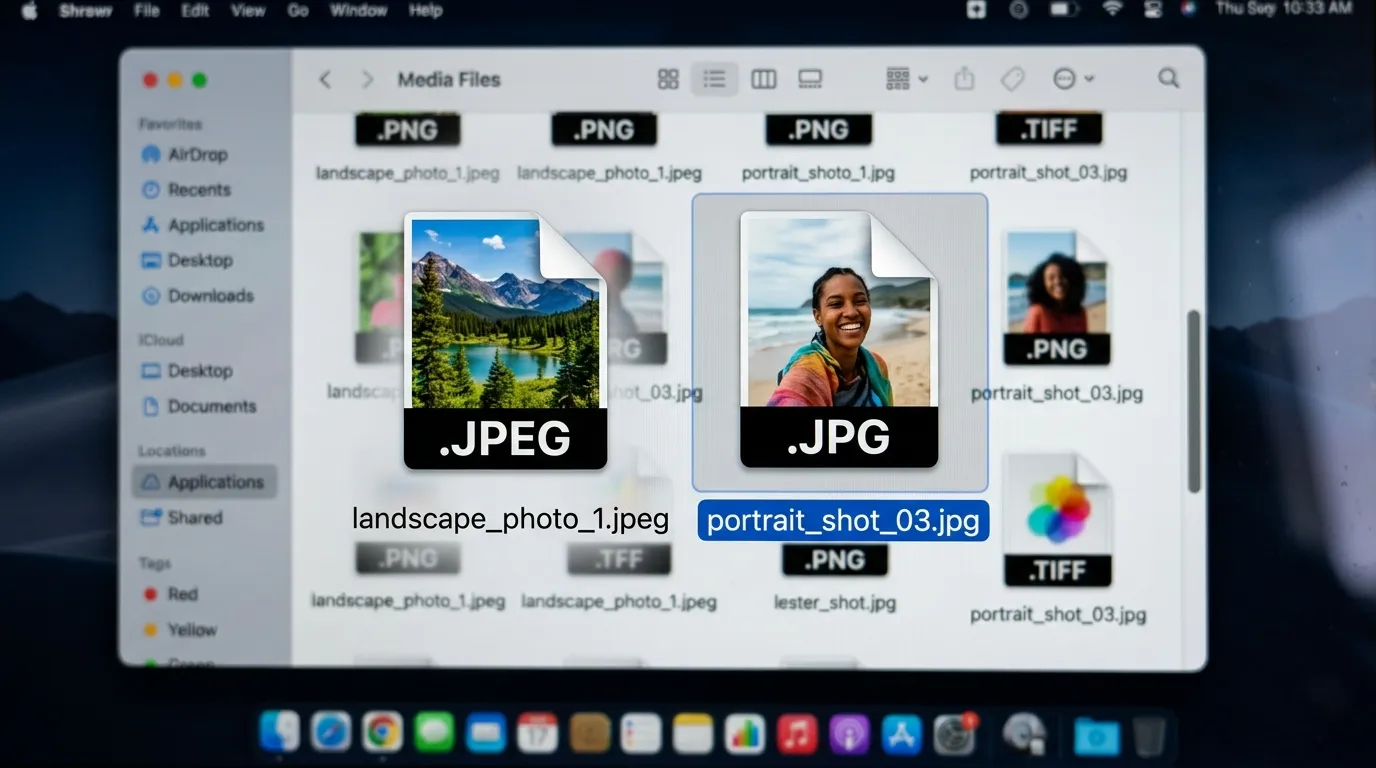
Are JPEG and JPG the Same Thing?
If you've ever gone looking for a free JPEG to JPG converter online, here's the
good news upfront: in almost every case, you don't need one. JPEG and JPG are the exact same
image format. There is no difference in quality, compression, colour depth, or file size between
a file named photo.jpeg and one named photo.jpg.
The only thing that differs is those three characters at the end of the filename — the file extension. Both extensions describe the Joint Photographic Experts Group (JPEG) format, which is the world's most widely used format for storing digital photographs and web-ready images.
Key fact: Renaming photo.jpeg to photo.jpg
produces an identical file. No conversion happens — just the label changes. Any tool
claiming to "convert" between the two is simply changing the extension, nothing more.
So why do both extensions exist? It comes down to a historical quirk in computing — one worth understanding so you know exactly when (and when not) to worry about it.
Why Do JPEG and JPG Both Exist?
When the JPEG format was standardised in 1992, early versions of Microsoft
Windows used the FAT file system, which restricted file extensions to a maximum of
three characters. So .jpeg was shortened to .jpg — and the name
stuck.
Mac OS and Unix-based systems had no such restriction, so those operating systems happily used
the full .jpeg extension. Over decades, this created a world where both extensions
circulate freely depending on which camera, phone, or software created the file.
| Property | .jpeg | .jpg |
|---|---|---|
| File format | JPEG | JPEG Identical |
| Image quality | Same compression algorithm | Same compression algorithm Identical |
| File size | Identical data | Identical data Identical |
| Colour support | Up to 16.7 million colours | Up to 16.7 million colours Identical |
| Origin | Mac OS, Unix, modern systems | Windows (legacy 8.3 naming) |
| Browser support | Universal | Universal |
Today, modern Windows handles both extensions without issue. Most software — from Photoshop to
your phone's camera app — defaults to .jpg, which is why you'll see it more often.
But encountering a .jpeg file doesn't mean anything different about the image
itself.
When Do You Actually Need to Convert?
Now that we've established JPEG and JPG are the same, let's look at the situations where a real format conversion — not just a rename — is genuinely needed.
1. Your software rejects one extension
Some older or niche software platforms are fussy about file extensions. A government upload
portal, an old CMS, or a legacy design tool might refuse .jpeg and only accept
.jpg (or vice versa). In this case, renaming the file is the fastest fix — no
conversion needed.
2. You need a different format altogether — not just a different extension
This is where actual conversion matters. Common real-world scenarios include:
- PNG → JPG: PNG files are lossless and often much larger. Converting to JPG shrinks file size significantly — great for web use where a transparent background isn't required.
- JPG → WebP: WebP is a modern format developed by Google that delivers roughly 25–35% smaller files than JPG at equivalent quality. Ideal for websites targeting faster load times.
- JPG → AVIF: An even newer format with superior compression, though support is still growing across browsers and devices.
- HEIC → JPG: Apple's default iPhone photo format (HEIC) is often incompatible with Windows machines or older web apps. Converting to JPG makes these photos universally usable.
Important: Every time you open and re-save a JPEG file at a lower quality setting, you permanently lose image data. This is called generation loss. If you need to edit an image repeatedly, work in a lossless format like PNG or TIFF, and convert to JPG only as the final step before publishing.
How to Convert JPEG to JPG (and Vice Versa) — Step by Step
Since JPEG and JPG are the same format, the "conversion" is just a rename. Here's how to do it on any device:
On Windows
- 1Open File Explorer and navigate to your image.
- 2Right-click the file and select Rename (or press F2).
- 3Change
.jpegto.jpg(or the reverse) and press Enter. - 4Windows will warn you about changing the extension — click Yes. The file is now identical but with the new extension.
On Mac
- 1Click the file once in Finder to select it.
- 2Press Return to enter rename mode.
- 3Edit the extension from
.jpegto.jpgand press Return. - 4Confirm the extension change in the dialog that appears.
Need to rename many files at once?
For batch renaming — say, 50 product photos that all need to switch from
.jpeg to .jpg — use a free tool like
Bulk Rename Utility (Windows) or NameChanger (Mac). Both let
you apply extension changes to hundreds of files in seconds.
Pro tip for
developers: On Linux or Mac terminal, you can batch-rename all
.jpeg
files in a folder to .jpg with a single command:
for f in *.jpeg; do mv "$f" "${f%.jpeg}.jpg"; done
Best Free Online Converters (For When You Need a Real Format Change)
If your use case goes beyond renaming — for example, you need to convert PNG images to JPG, compress photos for web, or handle less common formats — here are the tools we recommend. All are free, browser-based, and don't require software installation.
CloudConvert
Supports 200+ formats including all image, audio, video, and document types. Excellent for HEIC → JPG, PNG → JPG, and WebP conversions. Batch uploads available. No software needed.
Visit CloudConvertSquoosh
Made by Google. Converts and compresses images in your browser — nothing is uploaded to a server. Supports WebP, AVIF, PNG, JPG. Shows a real-time before/after quality preview as you adjust settings.
Visit SquooshiLoveIMG
Simple, fast, and purpose-built for image tasks: resize, convert, compress, crop, rotate. Great for non-technical users who want a clean interface without overwhelming options.
Visit iLoveIMGWhich tool should I use?
- Just need to switch from
.jpegto.jpg? → Rename the file, no tool needed. - Converting HEIC, RAW, or unusual formats? → CloudConvert handles the widest range.
- Optimising images for a website (PNG → WebP, JPG → WebP)? → Squoosh gives you quality control and privacy (no server upload).
- Quick resize or compress with minimal settings? → iLoveIMG is the most beginner-friendly.
Frequently Asked Questions
Still have questions about JPEG and JPG? Here are the answers to the most common ones.
Yes, completely. JPEG and JPG are the same image format using the same
compression algorithm. The only difference is the file extension —
.jpg
was adopted by Windows systems that limited extensions to 3 characters, while
Mac
and Unix systems used the full .jpeg. The images themselves are
byte-for-byte identical.
No. Since JPEG and JPG are the same format, renaming the extension causes zero quality loss — no encoding or re-compression takes place. Quality loss only occurs when you open a JPEG in an image editor and re-save it at a lower compression setting. If you're only changing the extension, the image data is completely untouched.
For a simple extension change, the fastest method is to rename the file directly on your computer — no online tool required. If you genuinely need to convert between different image formats (like PNG to JPG or HEIC to JPG), tools like CloudConvert and Squoosh are excellent free options that work directly in your browser.
Yes — and the process is exactly the same. Rename .jpg to
.jpeg. No quality is lost, no conversion happens. If your target
system or platform specifically requires one extension over the other, a rename
is all you need.
Neither is better than the other — they're identical. For websites today, the real question is whether JPG/JPEG is the right format at all. Modern formats like WebP and AVIF deliver similar visual quality at 25–50% smaller file sizes, which improves page load speed and Core Web Vitals scores. If you're optimising a site for SEO and performance, converting your JPGs to WebP is a more valuable step than switching between JPEG and JPG extensions.
You don't need to download anything to switch between JPEG and JPG extensions — renaming works on every operating system. For actual format conversions (PNG, HEIC, WebP, etc.), browser-based tools like Squoosh are safer than downloadable converters, since they process images locally in your browser without uploading to third-party servers. If you need a desktop app, GIMP (free, open-source) handles every major image format.